 Room Planner AI
Interior Redesign
Transform the whole room in a new style — furniture, colors and layout, all at once.
Take a photo, pick a style, and Room Planner AI redesigns the space in seconds — new furniture, colors, walls and floors, built around the room you actually have.
Free to download · 3 free redesigns to start · iPhone with iOS 17 or later
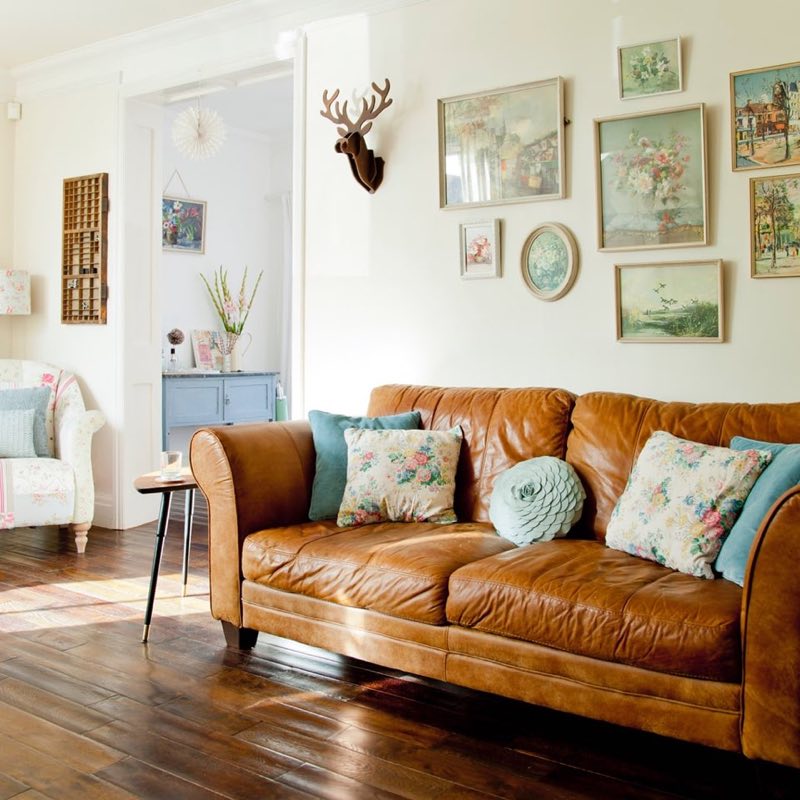
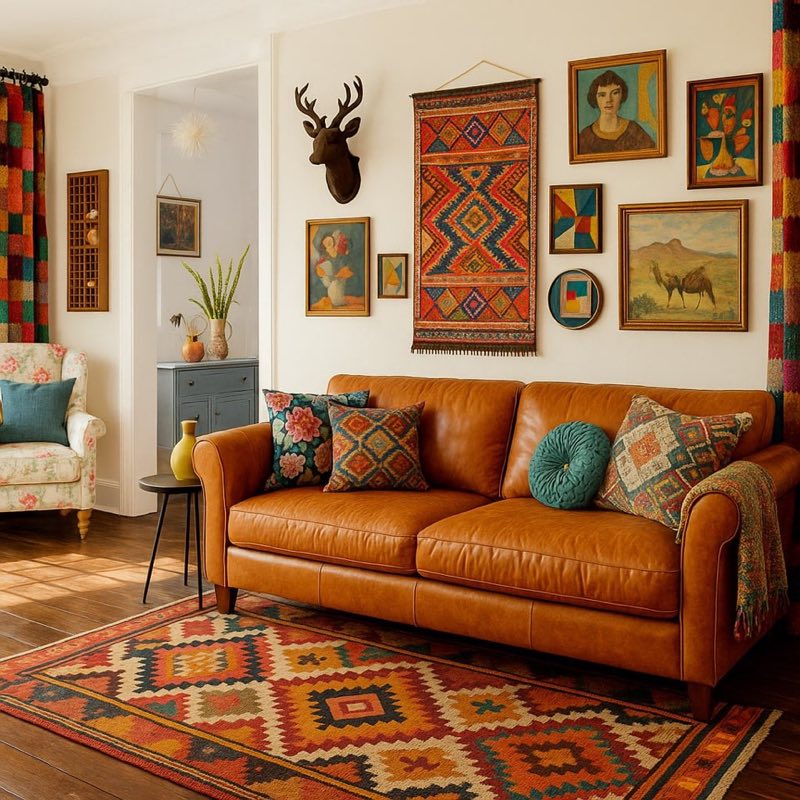 Before
After
Transform the whole room in a new style — furniture, colors and layout, all at once.
Swap a sofa, table, lamp or rug for something new. Describe it and see it in place.
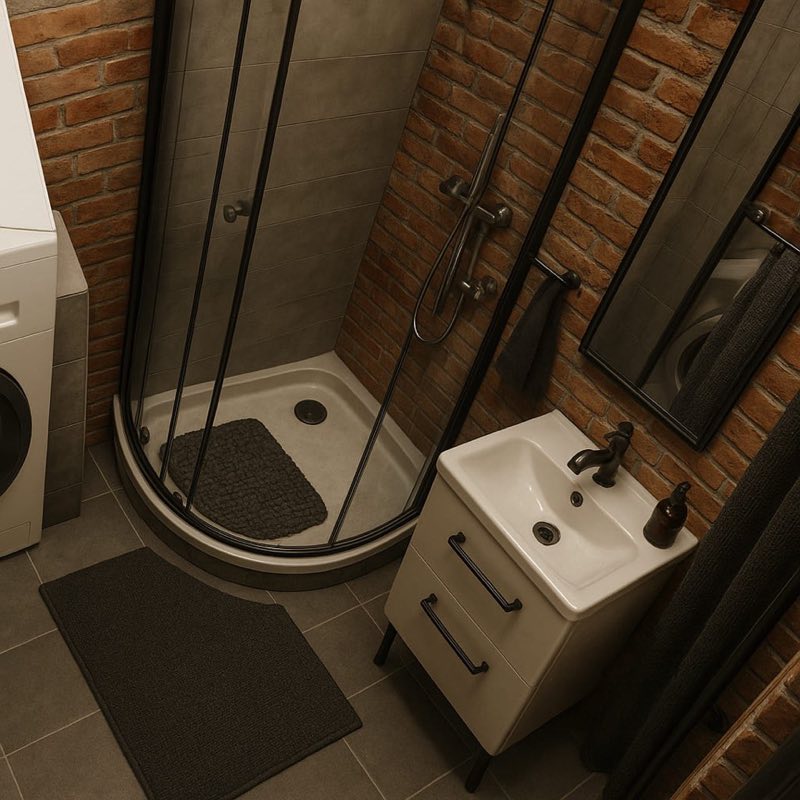
Try paint colors, wallpaper, brick or wood paneling before you buy a single can.
Compare hardwood, tile, stone or carpet on your own floor, in your own light.
Pick a look and a room type, and the redesign builds on the layout of the room in your photo.
Use the camera or pick a picture from your library. A clear, well-lit shot works best.
Select the room type and a style, or describe the item, wall or floor you have in mind.
Slide between before and after, regenerate for new ideas, and save or share your favorites.
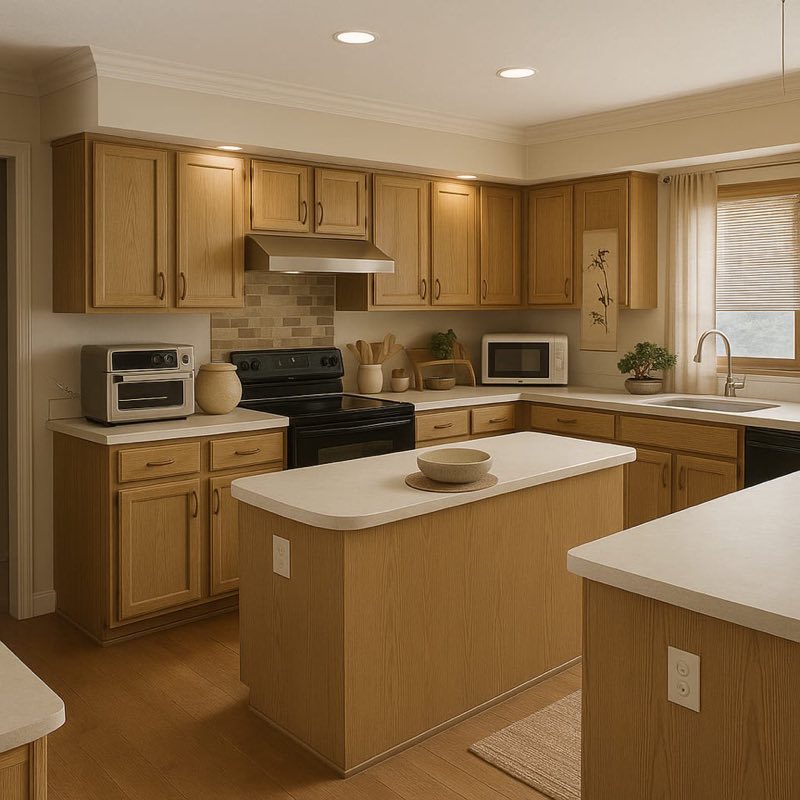
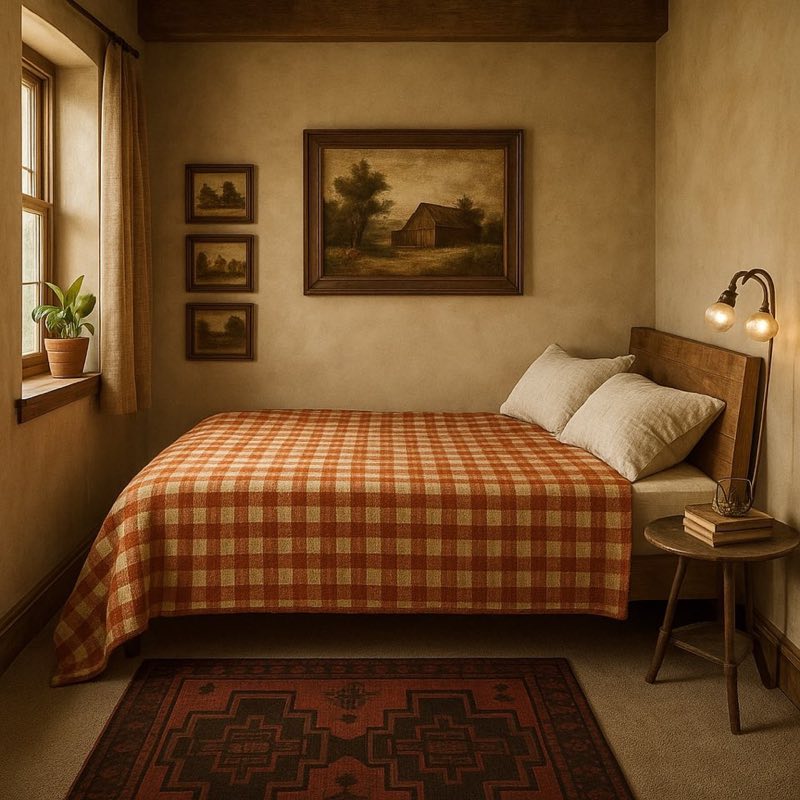

Free to download with 3 free Interior Redesigns. Unlimited designs and every tool with Room Planner AI Pro, an auto-renewing subscription you can cancel anytime.